INDEX ADBRITE


How to restart apache on ubuntu

To restart apache on ubuntu follow the following steps
>>Start gnome-terminal
>>Type
sudo /etc/init.d/apache2 restart
If you are using another version of apache replace "apache2" with your apache software name
Read more ...

How to create a favicon icon

Blogger or web developer what ever every one needs to designe a favicon icon for their site.

It works just like a logo.When a user bookmark the page the icon will be beside the book mark.


 What is favicon icon:

                 Look at the location bar and you will see a icon.It is called the favicon icon.            


If you are not a professional blogger or web developer and don't know about adobe photoshop or other graphics software and designe a icon for you it is the right palce for you.
We will descrive about a web based tool which generate a favicon icon on the basis of your given pitcure file


So lets start the journey how to do....


Go to this address
FAVICON GENERATOR


You will see a page looks like this:


Follow their instructions and make a icon for you web site or blog

How to integret it to the web site:


                            At first upload it to your web site or any image hosting server.Like picasa,Or any other image hosting

                                   Then add the above code before "</head>"  on your web page


<link rel="shortcut icon" type="image/x-icon" href="icon url">


Replace the "icon url" with your icon location Ex:http://picasa.com/favicon.ico

 And now Save the page

And you will see Your favicon icon
Read more ...

Blogger Stats on your Blogger Dashboard

Many of you might have been using Google analytics or some third party tracking scripts for monitoring your blog statistics. Now blogger has made it much easier for you. You can now get the stats right in your dashboard without adding any extra widgets or codes to your template. This feature is not yet available on your regular dashboard. This is only available on the Blogger in Draft Dashboard.

“The coolest thing about the new Blogger Stats is that it monitors and analyzes your visitor traffic in near-real-time. You can see which posts are getting the most visits and which sites are sending traffic to your blog right now. For example, if a reader shares one of your blog posts on Twitter and the post is getting lots of clicks, you will see a traffic increase in Blogger Stats almost instantly, with the particular Tweet mentioning your post being identified as the traffic source. Of course, traffic data across longer time periods (day/week/month) and all-time historical data are available as well.”
Source : (Official blogger in Draft Blog)
The stats will keep track of the popular keywords,countries where the visitors come from,web browsers used by the visitors and lots more.
“Note that the page view data in Blogger Stats and in Google Analytics may not be identical, due to different collection mechanisms used. Also, Blogger Stats do not support private blogs for now.”
Source : (Official blogger in Draft Blog)

How to See My Blog Stats?

  1. Blogger Stats is Currently available on the Blogger in Draft Dashboard only. So login at http://draft.blogger.com
  2. Now Click on the Stats Link Next to your Blog

    image
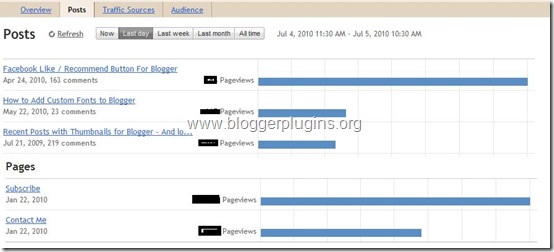
Here are the Screen shots of the different Tabs of Blogger Stats For the “Last Day” with the figures shaded out :)
blogger-stats-1
blogger-stats-2
blogger-stats-3
blogger-stats-4
Read more ...

How to add blogger widget without title

Nowadays many blogger are facing problem in keeping the title blank of the blogger widgets they adding.Like when we add any blogger widget to blogger blog we need to add title and widget content to it and the widget get added in the sidebar.

As if you would have noticed before blogger used to allow, to add content to widget without any title but now when we add content to widget it has become necessary to add title to the widget else it dont get added to blogger layout.Due to this many bloggers are facing problem as there are many widgets that don't need any title to be added.Like you say Linklist widget or any sponsors widget codes, many dont feel need to add title to some widgets.They want to keep it widget title blank without showing any title.

So i will be going to tell you how to make that title disappear from that widget.Below image will make clear what i am trying to hide and what content only want to show.


Just add any blogger widget you want to add in your blogger layout.Keep the title blank and place widget content and try to save it, the widget will show an error and will ask you to give title, means you are forced to give title to widget.
Dont worry just add title to it related to content.Now if you dont want to show that title follow the tutorial.

Suppose i have added the title Our Partners to it.But i dont want to show that title in blog.

Now just go to Blogger Design > Edit Html > Press Ctrl+F
and search for title like i will search for - Our Partners.

Then you will get title in one widget line like below.


<b:widget id='HTML3' locked='false' title='Our Partners' type='HTML'/>
Now what you have to do is to get id of widget that is written in red in above code.
In above example it is HTML3.

Now after getting the widget id, find for ]]></b:skin> tag in your template and place the below code before it and your widget title will get hide for you.


#HTML3 h2 {display:none;}

Just be sure to change the HTML3 with your widget id which you find for your widget.
Just Enjoy this small css hack........which is very useful for many bloggers :)
Read more ...

How to change your Blogger blog's Default icon


It's simple, just follow these simple steps below!
First, choose a.png file (of any size) that you deem nice enough to put as a blog icon.
Then, upload the.png tohttp://html-kit.com/favicon/-/selpic-2/ and download the resulting file in.ico
format.
After downloading the.ico file to your computer, upload it tohttp://picpanda.com/ or
http://imageboo.com/, and obtain a direct link for the file after it is uploaded into the website's storage.
Log into your Blogger account and select: Dashboard>Layout>Edit HTML.
You will see a window with all the HTML mumble-jumbles you do not understand. Fret not, you only need
to find the code right at the top, that should look like this:
<head>
<b:include data='blog' name='all-head-content'/>
<title><data:blog.pageTitle/></title>
<b:skin><![CDATA[/*
After the line of code:
<title><data:blog.pageTitle/></title>
on the next line, type:
<link href='URL of your icon file' rel='shortcut icon' type='image/vnd.microsoft.icon'/>
Make sure not to simply copy this exactly, but actually put your icon’s URL in, instead of the words ‘URL
of your icon
The whole thing will look like this:

<head>
<b:include data='blog' name='all-head-content'/>
<title><data:blog.pageTitle/></title>
<link href='URL of your icon file' rel='shortcut icon' type='image/vnd.microsoft.icon'/>
<b:skin><![CDATA[/*
Here is a sample of the code:
<head>
<b:include data='blog' name='all-head-content'/>
<title><data:blog.pageTitle/></title>
<link href='http://www.picpanda.com/images/123456789abcdefg.ico' rel='shortcut icon'
type='image/vnd.microsoft.icon'/>
<b:skin><![CDATA[/*
Click to save your new template and you should see the new icon next to your blog's address!
PS: If the above codes do not work, try inserting this code instead:
<link href='URL of your icon file' rel='shortcut icon' type='image/x-icon'/>
Read more ...